Forwarding logged events to another service
Sharing logged activity adds another layer of visibility to your machine identity management strategy.
The Connectors API lets you forward logged CyberArk Certificate Manager - SaaS events to other services. Using simple JSON, you might send events to your security information and event management (SIEM) environment, or to Slack or Microsoft Teams channels.
For example, you could send all event log data to your SIEM tools to aggregate and analyze so you can take appropriate action in a timely manner.
What logged data can be shared?
Event logging captures many data points that you can then share via webhooks.
While all filter categories and criteria are available on the Certificate Manager - SaaS Event Log page, the current version of the API exposes the following:
- Criticality
- Event
- Event Types (and all filter criteria within it)
Setting up event log sharing using the Connector API
The steps below walk you through how to use the Connectors API to integrate event logging using either one of the following connectors:
- Generic webhook: specify your own URIs where you want to send logged data, such as to your SIEM or other security systems.
- Slack: send logged events to a Slack channel for monitoring and sharing activities that are happening in your Certificate Manager - SaaS account.
- Microsoft Teams: send logged events to a Teams channel to improve monitoring and sharing activities happening in your Certificate Manager - SaaS account.
Before you begin
-
Become familiar with available event log categories and criteria, which you can see from the Event log page in Certificate Manager - SaaS.
-
You'll need a copy of your Certificate Manager - SaaS API key. You can copy your key here. Learn more.
-
If you're going to use the Slack connector and you've never set up a webhook in Slack, review Slack's documentation about sending messages using incoming webhooks here before you continue.
-
If you're going to use the Microsoft Teams connector and you've never set up a webhook in Teams, review Microsoft's incoming webhooks documentation before you continue.
To set up event log sharing
Forward logged events in three simple steps:
- Decide which logged events you want to forward, and where you want them delivered (your target URI).
- Write your JSON.
- Give it a try!
Step 1: Decide what logged data you want to forward
Take a look at the available event log filters and categories so you have an idea of the data you can retrieve and share.
In fact, it's a best practice to play with filtering event logs so you have a clearer idea of what you want to include when you forward logged events. Learn more
To view event log categories and criteria in Certificate Manager - SaaS
-
Log in to Certificate Manager - SaaS.
-
Click Settings > Event Log.
-
Click Add Criteria to see the list of available filter categories.
-
Select a category and then click the Event list to see all criteria for the category you selected.

-
(Optional) If you want to see what logged events are returned based on your selections, click Apply Filter.
Another way to see filter categories all at once
Another way to see a full list of filter categories and criteria all at once is through the /v1/activitytypes API endpoint. This can be executed directly from Developer Hub by following these steps:
-
If you haven't already done so, copy your API key.
-
In the Authentication section on the right, paste your API key into the Header field. Click Try It.
-
All available categories and criteria are listed in the Response section.
Step 2: Write your JSON
Write your own JSON and be sure to include the following:
- Specify your target type: Slack or Generic connectors.
- Add the URL of your chosen target.
- Specify the filter category and criteria you want sent to the target.
Quick Reference: Filter categories available via API
While all filter categories and criteria are available on the Certificate Manager - SaaS Event Log page, the current version of the API exposes the following:
- Criticality
- Event
- Event Types (and all filter criteria within it)
Other categories will continue to be added in future updates.
| Event Log Filter Category | Criteria | Available via API | Available in VaaS UI |
|---|---|---|---|
| Criticality | 0 or 1 | YES | YES |
| Description | (user-defined) | NO | YES |
| Event | NA | YES | YES |
| Event Type | All criteria are included when forwarding this category. Refer to the list of criteria as described above in the Before you begin section. | YES (all) | YES |
| Timestamp | NA | NO | YES |
Example 1: forward critical events for a specific event type to a Slack channel
Forward all critical events for a specific event type. For example, you could forward all failed attempts to log into Certificate Manager - SaaS to a Slack channel.
{
    "name": "someName",
    "properties": {
        "connectorKind": "WEBHOOK",
        "target": {
            "type": "slack",
            "connection": {
                "url": "https://hooks.slack.com/services/"
            }
        },
        "filter": {
            "activityTypes": ["Authentication"]
            "criticality": 1
        }
    }
}
Example 2: forward specific event types to your security service tools
Forward all critical events related to all event types. For example, you could forward all critical events to your SIEM or other security service tools, where you create your own triggers for responding to Certificate Manager - SaaS events.
{
    "name": "someName",
    "properties": {
        "connectorKind": "WEBHOOK",
        "target": {
            "type": "generic",
            "connection": {
                "url": "https://my.secops.com/services/"
            }
        },
        "filter": {
            "criticality": 1
        }
    }
}
Example 3: forward a specific activity to a team in Microsoft Teams
Send a specific event--in this example, Login Succeeded--to a channel in Microsoft Teams for a quick method of notification about the activity.
{
    "name": "someName",
    "properties": {
        "connectorKind": "WEBHOOK",
        "target": {
            "type": "teams",
            "connection": {
                "url": "https://mycompany.webhook.office.com/webhookb2/..."
            }
        },
        "filter": {
            "activities": ["Login Succeeded"]
        }
    }
}
Step 3: Send your JSON data to the API
In this step, you will send your JSON data to the API. Use a tool such as Postman to send a POST request, as shown below:
POST https://api.venafi.cloud/v1/connectors
tppl-api-key: xxxxxxxx-xxxx-xxxx-xxxx-xxxxxxxxxxxx
Content-Type: application/json
The response body should look something like this:
{
    "name": "someName",
    "properties": {
        "connectorKind": "WEBHOOK",
        "target": {
            "type": "slack",
            "connection": {
                "url": "https://hooks.slack.com/services/"
            }
        },
        "filter": {
            "activityTypes": ["Authentication"]
            "criticality": 0
        }
    }
}
Step 4: Give it a try
Now, try creating new logged events for the filter categories you chose by logging into Certificate Manager - SaaS and performing actions that create those event logs.
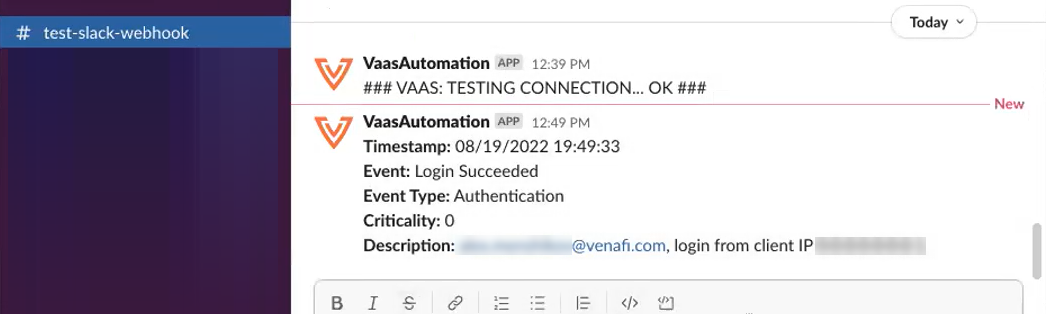
As a simple example, suppose you selected the following configuration:
- Target: Slack
- Filter category: Event Type
- Category criteria: Authentication
- Criticality: 0
Then you should see something like this appear in your Slack channel: