Overview
This guide will walk you through setting up Power BI for CyberArk Certificate Manager - SaaS. Power BI Desktop is a free business intelligence tool from Microsoft and provides users with the tools needed to aggregate, model, analyze, and visualize data.
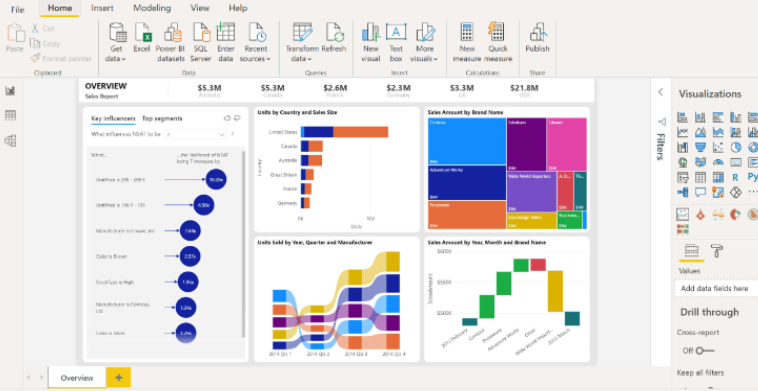
Some use cases for Power BI Desktop are:
- Utilizing APIs - users can retrieve data from their tenants and create customizable dashboards and visualizations.
- Transform data into meaningful visualizations - integrate Certificate Manager - SaaS data with other data sources. Perform data analysis, monitor data changes, and enable decision-making.
Before you begin
Ensure you have the below prerequisites before starting this procedure.
- You will need a Windows system, running Windows 10, Windows Server 2012 R2, Windows Server 2012, Windows 8, Windows 8.1, Windows Server 2016, Windows Server 2019, or Windows 11.
- An active instance of Certificate Manager - SaaS. A free 30-day trial account may be requested at: Venafi free trial
Step 1: Download and install Power BI Desktop
- Go to the Microsoft downloads site for Power BI Desktop.
- Under Microsoft Power BI Desktop, click one of the download options and follow the instructions to install.
📘 Note This is currently only available for Windows operating systems and macOS if utilizing Parallels.
Step 2: Download and open the Venafi Power BI Template
- Download the Venafi Power BI Template or the Venafi Power BI Template EU version.
- Double click the Venafi_Tenant_Cert_Stats.pbix file and this will automatically open in the Power BI Desktop tool.
Step 3: Obtain an API key from Certificate Manager - SaaS
- Log in to Certificate Manager - SaaS.
- In the menu bar, click your avatar in the top-right corner, and then click Preferences.
- On the API Keys tab, click the
 button to copy your API key.
Step 4: Replace Power BI API key with Certificate Manager - SaaS API key
- From the Power BI Desktop toolbar, find the "Transform Data"
 icon.
icon. - Click on the down arrow and select Edit Parameters.
- In the apiKey field, paste your Certificate Manager - SaaS API key you retrieved in the previous step.
- From the Power BI Desktop toolbar, click the Refresh button. This action will trigger the appearance of a refresh status box, initiating the data download process from your Certificate Manager - SaaS tenant. Once this process has been completed, you will see the visualizations updating with the data sourced from your Certificate Manager - SaaS tenant.
🥇 Congrats, you can now transform Certificate Manager - SaaS data into meaningful visualizations.
Troubleshooting tips
ℹ️ Tips
- If the Refresh data does not update properly, ensure you have an Admin API key from your Certificate Manager - SaaS tenant.
- Ensure that the API key hasn’t expired.
- Ensure that Power BI has access to the internet and can access Certificate Manager - SaaS.
- Additional issues can occur when Power BI receives unexpected data, such as NULL values. The Refresh box should give you an option to view errors, which is very helpful in troubleshooting.